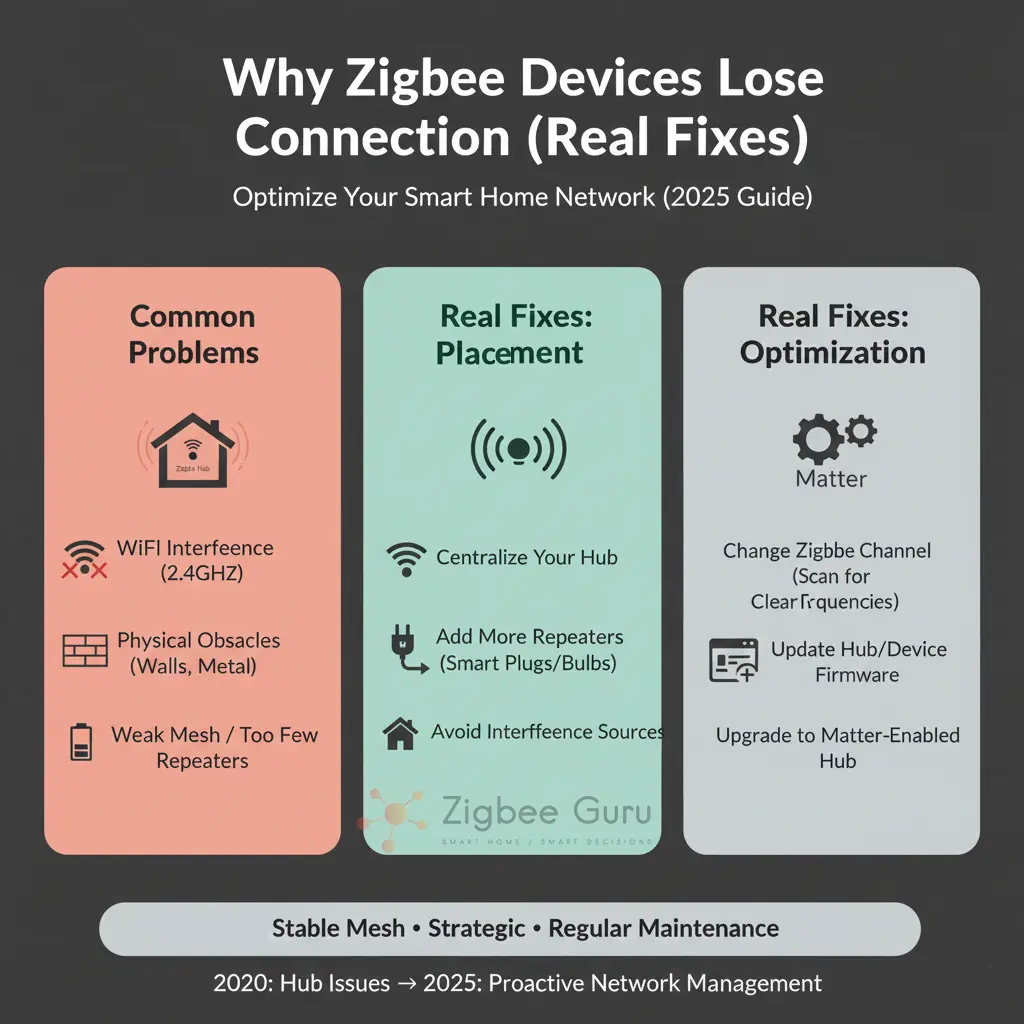
Zigbee devices rarely “die” without a reason. When a light, plug, or sensor keeps going offline, the cause is almost always linked to radio conditions, mesh design, or power issues rather than a random defect.
This guide explains why Zigbee devices lose connection in real homes and how to fix it in a structured, engineering-style way. We focus on practical diagnosis: from coordinator placement and Wi-Fi interference to router density, building materials, and firmware.
The goal is to help you stabilise your network once and keep it stable, using the same principles applied in professional installations across European apartments and houses.
Table of Contents
- What “Zigbee Lost Connection” Really Means
- Typical Symptoms Before a Device Drops
- Coordinator Placement and Network Design
- Channel Planning and Wi-Fi Interference
- Router Density and Mesh Health
- Battery Devices and Power Problems
- Firmware, Hubs, and Integrations
- Range Limits and Building Materials
- Diagnostic Tools: LQI, Topology Maps and Logs
- Step-by-Step Diagnostic Checklist
- Conclusion: Design for Stability, Not Luck
What “Zigbee Lost Connection” Really Means
When a Zigbee device “loses connection”, your hub usually marks it as offline, unavailable, or not responding. In practice, this means the coordinator has not received valid messages from that device within a certain time window, or repeated retries have failed.
Zigbee runs on IEEE 802.15.4, typically at 2.4 GHz in Europe, with low transmit power and strict duty-cycle rules under ETSI EN 300 328. Devices rely heavily on mesh routing through intermediate routers. If routes break, interference rises, or a router disappears, end devices can no longer reach the coordinator.
From an engineering perspective, “lost connection” is a network-level symptom, not a single device problem. The fix starts by understanding your topology: coordinator position, router locations, channel choice, and how many battery devices depend on each router.
- Coordinator: the central controller that forms the Zigbee network.
- Routers: mains-powered devices that relay traffic and extend range.
- End devices: usually battery-powered sensors that sleep and depend on routers.
Typical Symptoms Before a Device Drops
Devices almost never go from “perfect” to “offline forever” in a single step. Instead, you usually see delayed responses, missed reports, or intermittent failures before the hub finally marks them as unavailable.
Recognising these patterns helps you identify whether the root cause is interference, weak mesh, or power-related. Analysing logs from your hub or Home Assistant integration is useful, but even visual patterns in daily use already provide valuable clues.
- Lights that respond with a 1–2 second delay, then sometimes not at all.
- Contact or motion sensors that skip events or update only when very close to a router.
- Whole rooms that stop responding after someone switches off a smart plug or extension.
- Devices that drop at specific times (for example, when Wi-Fi load is high in the evening).
Coordinator Placement and Network Design
The coordinator defines the centre of your Zigbee network. Placing it poorly is one of the fastest ways to create unstable links and constant “lost connection” messages, especially in European flats with reinforced concrete and metal doors.
A coordinator hidden behind a TV, inside a metal cabinet, or directly on top of a Wi-Fi router will suffer from attenuation and interference. This reduces link quality (LQI) for the first hop, forcing the mesh to work harder and making every downstream route more fragile.
- Place the coordinator centrally, at least 0.5–1 m away from Wi-Fi routers and large metal objects.
- Use a short USB extension cable for USB sticks, so they hang free in the air rather than behind a PC or NAS.
- Aim for line-of-sight to at least one strong router on each side of the home (corridor, living room, and central hallway).
- If you have multiple floors, start by stabilising the floor with the coordinator, then extend upwards with dedicated routers.
Good physical design of the coordinator and first-hop routers often eliminates most random drops without touching firmware or advanced settings. For a deeper conceptual overview of the protocol, see also What Is Zigbee?.
Channel Planning and Wi-Fi Interference
Zigbee 2.4 GHz channels (11–26) overlap significantly with 2.4 GHz Wi-Fi channels (1–13). In European homes, access points are often set to auto, creating unpredictable interference for nearby Zigbee networks, especially in apartment buildings with many neighbours.
Because Zigbee transmit power is low and packet duration is short, strong and continuous Wi-Fi traffic can easily mask Zigbee frames. The practical fix is to choose a Zigbee channel that sits between busy Wi-Fi channels and, where possible, fix your Wi-Fi channels instead of leaving them on auto.
| Wi-Fi Setup (2.4 GHz) | Better Zigbee Channels | Comments for EU Homes |
|---|---|---|
| Wi-Fi on channel 1 | 15, 20, 25 | Reduces overlap with the heaviest part of channel 1 spectrum. |
| Wi-Fi on channel 6 | 11, 15, 20 | Channel 11 is common for Zigbee if channel 1 is free or lightly used. |
| Wi-Fi on channel 11 | 15, 20 | Good balance when neighbours are also using upper Wi-Fi channels. |
| Multiple APs or dense neighbours | 20, 25, 26 | Higher Zigbee channels can help, but check device compatibility with 25/26. |
- Fix your main Wi-Fi AP to a known channel (1, 6, or 11) instead of “auto”.
- Set Zigbee to a channel with minimal overlap with your most heavily used Wi-Fi channel.
- Keep the coordinator physically away from the Wi-Fi antenna, not stacked on the same device.
- Retest stability after any major Wi-Fi reconfiguration or AP replacement.
In dense urban environments, channel optimisation alone can turn a “flaky” network into a stable one, especially for devices at the edge of coverage that were constantly losing connection before.
Router Density and Mesh Health
Zigbee is designed as a mesh: mains-powered devices act as routers and relay traffic from battery devices. If you rely only on the coordinator and a few distant routers, the mesh becomes fragile and small changes (a device unplugged, a new wall cabinet) can cause whole segments to drop.
European homes with thick brick walls, reinforced concrete slabs, and metal roller shutters need more routers than marketing brochures suggest. A good rule of thumb is to design router placement first and treat battery devices as “passengers” on that mesh.
- Aim for at least one strong router every 6–8 m of indoor distance, especially across walls and doors.
- Never rely on a single router to serve an entire floor; create overlapping coverage.
- Do not plug routers into switched outlets or power strips that are often turned off.
- Use fixed, always-on smart plugs or in-wall modules in corridors and central locations to build the backbone.
If you notice that a specific router being unplugged causes many devices to go offline, the mesh is too dependent on that single node. Adding one or two strategically placed routers usually resolves repeated “lost connection” events in that area.
Battery Devices and Power Problems
Battery-powered Zigbee devices are end devices that sleep most of the time to conserve energy. When their batteries are low or of poor quality, they may fail to wake up, transmit weakly, or miss acknowledgements, which the hub interprets as a lost connection.
Cheap coin cells or mixed battery brands in the same installation can behave unpredictably under load and temperature changes. In cold rooms, garages, and outdoor boxes, effective capacity drops further, increasing the chance of random disconnects and missed reports.
- Replace factory-supplied coin cells early with high-quality branded equivalents.
- Check battery voltage under load if possible; nominal voltage alone is not a guarantee.
- In unheated or outdoor locations, expect shorter battery life and plan replacements proactively.
- If a device frequently drops and comes back after battery changes, treat power as the primary root cause.
Also remember that some battery devices only check in at long intervals. A device that appears offline in the UI may simply not have reported yet; forcing a wake-up or manual trigger (for example, opening a contact sensor) helps confirm real connection status.
Firmware, Hubs, and Integrations
Even with perfect radio conditions, software issues can cause apparent disconnections. Firmware bugs in hubs, coordinators, or devices themselves may lead to routing table corruption, memory leaks, or crashes that show up as multiple devices going offline at once.
In Home Assistant, different stacks (ZHA, Zigbee2MQTT, deCONZ) handle routing, retries, and device quirks differently. Commercial hubs have their own firmware and cloud logic. A network that suddenly becomes unstable right after an update or configuration change should be treated as a software regression first. Cloud-dependent automations add a second failure domain on top of this, which is why it helps to know which automations should run locally and which can safely live in the cloud.
- Keep coordinator firmware and hub software up to date, but avoid updating during critical periods.
- Create backups of your Zigbee network or hub configuration before major updates.
- Check release notes for known issues related to specific chipsets or device types.
- If a new version introduces instability, rolling back or changing integration may be more effective than re-pairing all devices.
When only a single device repeatedly drops while others remain stable, firmware on that specific device may be at fault. In that case, check whether the manufacturer provides an update via hub or OTA and apply it under good radio conditions.
Range Limits and Building Materials
Zigbee radios are low power by design. European building techniques, especially reinforced concrete, clay brick, and insulated external walls with foil, can attenuate the signal heavily. A device that appears just within range during pairing may become unreliable once the environment changes.
Metal elements such as radiators, lift shafts, mirrored wardrobes, and roller shutters can create shadows or reflections that reduce effective coverage. Devices mounted inside metal boxes or behind metal panels will almost always show weaker link quality and higher disconnection risk.
- Avoid placing devices directly behind large metal surfaces or inside metal enclosures.
- Use routers in hallways and stairwells to bridge between rooms separated by heavy walls.
- For multi-storey houses, place routers near staircases rather than at the extremes of each floor.
- If you frequently change furniture or close heavy doors, recheck link quality to key devices afterwards.
Combining realistic expectations about range with planned router placement is more effective than trying to “force” long connections through multiple concrete walls, which will always be fragile in daily use.
Diagnostic Tools: LQI, Topology Maps and Logs
Before changing anything in the network, look at what the network is telling you. Modern Zigbee stacks expose diagnostic information that turns vague feelings (“the network is flaky”) into observable, measurable signals. Using these tools is almost always faster than guessing — and far more effective than re-pairing every device that misbehaves.
- LQI (Link Quality Indicator): a value typically reported on a 0–255 scale, where higher means fewer errors at the radio level. For critical devices (locks, alarm sensors, safety-related automations) aim for LQI consistently above ~150. Values that fluctuate wildly or sit near the bottom of the scale point to a marginal link that will eventually drop under load.
- Topology maps and neighbour tables: visualisations in Zigbee2MQTT, ZHA, and deCONZ that show which router each end device is using as its parent. They reveal long routing chains, overloaded routers serving too many children, and lonely devices with no good neighbour. A single glance at the map often shows where to add a router.
- Logs, retries and route changes: repeated retry counters or frequent re-parenting for a specific device indicate either a borderline link or an unstable parent router. Logs at the coordinator level often expose patterns (time of day, specific router) that pinpoint the real cause.
- Track over time, not as snapshots: a single LQI reading is rarely meaningful — a link can look healthy now and fail under Wi-Fi load tonight. Where possible, plot LQI and route stability over hours or days before deciding what to change.
By correlating LQI values, parent relationships, and physical layout, you can decide where to add or move routers based on evidence instead of guesswork. This turns mesh troubleshooting from a frustrating loop into a methodical activity with a clear endpoint.
Step-by-Step Diagnostic Checklist
When a Zigbee device keeps losing connection, treating it as a structured diagnostic task avoids random trial-and-error. The following sequence moves from simplest checks to deeper network-level analysis.
- Check power first: replace batteries with known-good ones or verify stable mains power for routers.
- Test proximity: temporarily move the device close to the coordinator or a strong router and observe stability.
- Inspect physical placement: remove obvious obstructions such as metal boxes, large appliances, or closed cabinets.
- Review mesh topology: in your hub or integration, check which router the device is using and whether that router is stable.
- Stabilise Wi-Fi: fix your 2.4 GHz Wi-Fi channel and adjust Zigbee to a less congested channel if necessary.
- Add or reposition routers: create overlapping coverage so the device has more than one path to the coordinator.
- Update firmware: apply relevant firmware updates to the coordinator, hub, and device under good radio conditions.
- Re-pair as a last step: only after the network is stable should you remove and re-pair the device, ideally in its final position.
Documenting the changes you make and the effect on stability helps you converge on a permanent fix instead of repeating the same tests every few weeks when the device drops again.
In a healthy Zigbee installation, repeated disconnections are a design signal, not bad luck. Fix the design, and the drops disappear.
Preventive Design Checklist
The checklist above is reactive — what to do when something has already gone wrong. The list below is preventive: a short set of design rules to follow whenever you build, expand, or redesign a Zigbee network, so that most “lost connection” problems never appear in the first place.
- Place the coordinator centrally, elevated, and away from thick metal objects and Wi-Fi antennas.
- Plan for at least one good, always-on router in every major room or cluster of battery devices.
- Avoid using lamps or plugs that are frequently switched off as critical routers — they take whole branches of the mesh with them.
- Select Zigbee and Wi-Fi channels deliberately, minimising mutual overlap in the 2.4 GHz band.
- Verify LQI and parent relationships after every major change (new router, channel switch, firmware update).
- Document your channel choices, router placement, and battery replacement dates — future-you will thank present-you.
A network designed with these rules in mind tends to stay stable through firmware updates, Wi-Fi changes, furniture rearrangements, and the slow growth that every smart home goes through over a few years.
Conclusion: Design for Stability, Not Luck
When Zigbee devices lose connection, the root cause usually lies in mesh design, interference, range, or power, not in the protocol itself. Coordinators placed next to Wi-Fi routers, missing routers in key areas, and weak batteries create fragile links that eventually fail.
A stable Zigbee network is built deliberately: coordinator in a clean RF location, sufficient always-on routers, well-chosen channels, and awareness of European building materials. With these elements in place, devices stop dropping, automations become predictable, and the system behaves like a proper low-power control network rather than a collection of random gadgets.
Approach connection issues like an engineer: change one variable at a time, observe the effect, and document the final working design. The result is a Zigbee installation that remains stable across firmware updates, Wi-Fi changes, and daily use.
FAQ: Zigbee Devices Losing Connection
- Q: Why do my Zigbee sensors drop mostly at night?
A: At night, some users switch off smart plugs or extension strips, unintentionally powering down Zigbee routers. If a battery sensor depends on that router, it loses its path to the coordinator and appears offline until routing recovers or the power is restored. - Q: How many devices can one Zigbee coordinator handle before it becomes unstable?
A: It depends on the chipset and firmware, but the practical limit is usually defined by router capacity rather than the coordinator itself. With enough routers, it is common to run dozens of devices reliably; problems start when many battery devices depend on too few routers. - Q: How many Zigbee routers do I actually need in a typical home?
A: In a 70–120 m² European home, plan for three to six well-placed, always-on routers in addition to the coordinator. Larger or multi-floor houses usually need additional routers in stairwells, corridors, and rooms separated from the coordinator by reinforced concrete walls. The exact number matters less than the placement: overlapping coverage with no single point of failure is the goal. - Q: Will adding more routers always fix connection drops?
A: Adding routers helps only if they are placed correctly and left permanently powered. Randomly adding devices without planning can create longer or sub-optimal routes. Focus on strategic positions: corridors, stairwells, and central locations between problem areas and the coordinator. - Q: Can I use any smart plug as a Zigbee router?
A: Most mains-powered Zigbee plugs can technically route traffic, but their quality varies considerably. Some low-cost plugs implement routing poorly, have limited routing tables, or drop children under load. It is best to test new plugs in non-critical locations for a few days before relying on them for core mesh paths — and to avoid using them in places where they will be switched off at the wall. - Q: How do I know if Wi-Fi is really causing my Zigbee issues?
A: Wi-Fi interference is the likely cause when Zigbee problems correlate with heavy Wi-Fi usage (typically evenings), affect only devices near the Wi-Fi router, or began after a router change. Confirm by checking which 2.4 GHz Wi-Fi channels your APs and neighbours use, and whether your Zigbee channel overlaps the busy ones. If a temporary move of the coordinator a few metres away from the Wi-Fi router noticeably improves things, interference is part of the problem. - Q: Should I change Zigbee channels often to find the perfect one?
A: Frequent channel changes force devices to rebuild routes and can cause instability. It is better to analyse your Wi-Fi environment once, choose a suitable Zigbee channel with low overlap, move devices if needed, and then keep that configuration stable. - Q: Is sub-GHz Zigbee better for avoiding lost connections in Europe?
A: Sub-GHz Zigbee can offer better penetration through walls and less interference from Wi-Fi, but device availability and hub support are more limited. For most residential setups, a well-designed 2.4 GHz network with proper router density is sufficient and easier to build with widely available products. - Q: Do I need to re-pair devices every time they lose connection?
A: Re-pairing should be a last resort. If you fix underlying issues like interference, router placement, and power stability, most devices will reconnect automatically as the mesh heals. Re-pair only after the environment is stable and the same device still fails.